Capturing a Screen to Send to FAE
Device Manager enables admin to capture a device screen in order for admin to more effectively collaborate with FAEs and debug | troubleshoot issues. The feature enables capturing the device's main screen as well as the device’s Expansion Module (sidecar) in the case of phone models with a sidecar. The feature triggers a screen capture into a jpg file on the device.
The feature complies with customer requests for AudioCodes Android Device Utility features and capabilities to be available from Device Manager because customer IT security regulations prohibit installation of unofficial third-party applications on employee PCs. See also the Android Device Utility User's Manual available .
|
1.
|
In Device Manager, open the Devices Status page (Monitor > Devices Status). |
|
2.
|
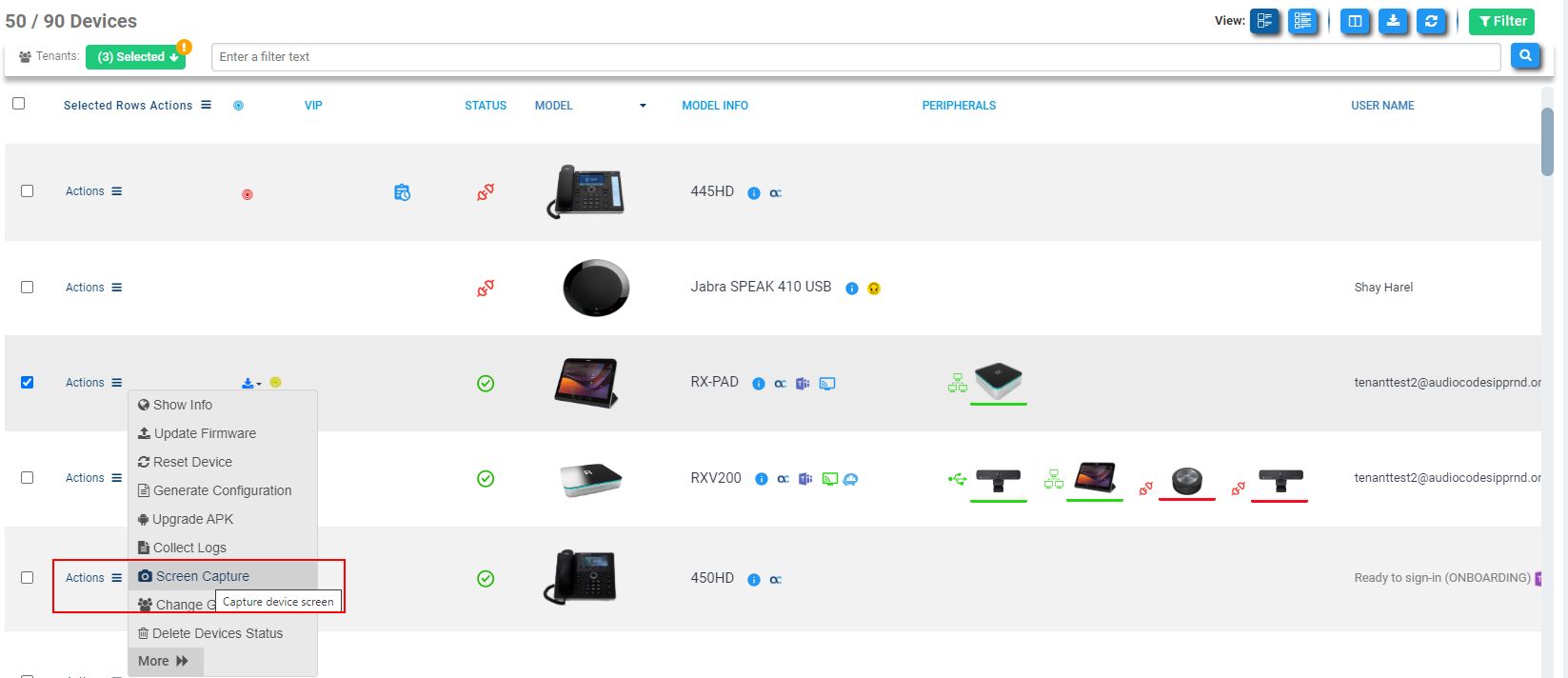
Click  in the same row as the device whose screen you want to capture. in the same row as the device whose screen you want to capture. |
|
3.
|
From the menu that pops up, select Screen Capture; the following notification is briefly displayed. |

|
4.
|
View in the Devices Status page the download icon  displayed in the same row as the device whose screen you captured. displayed in the same row as the device whose screen you captured. |

|
5.
|
Click the download icon. |

|
●
|
The tooltip displayed lists multiple files in chronological order. |
|
●
|
The tooltip may also list debug log files. |
|
6.
|
Click the tooltip; a downloaded indication appears in the upper right corner of the page. |
|
7.
|
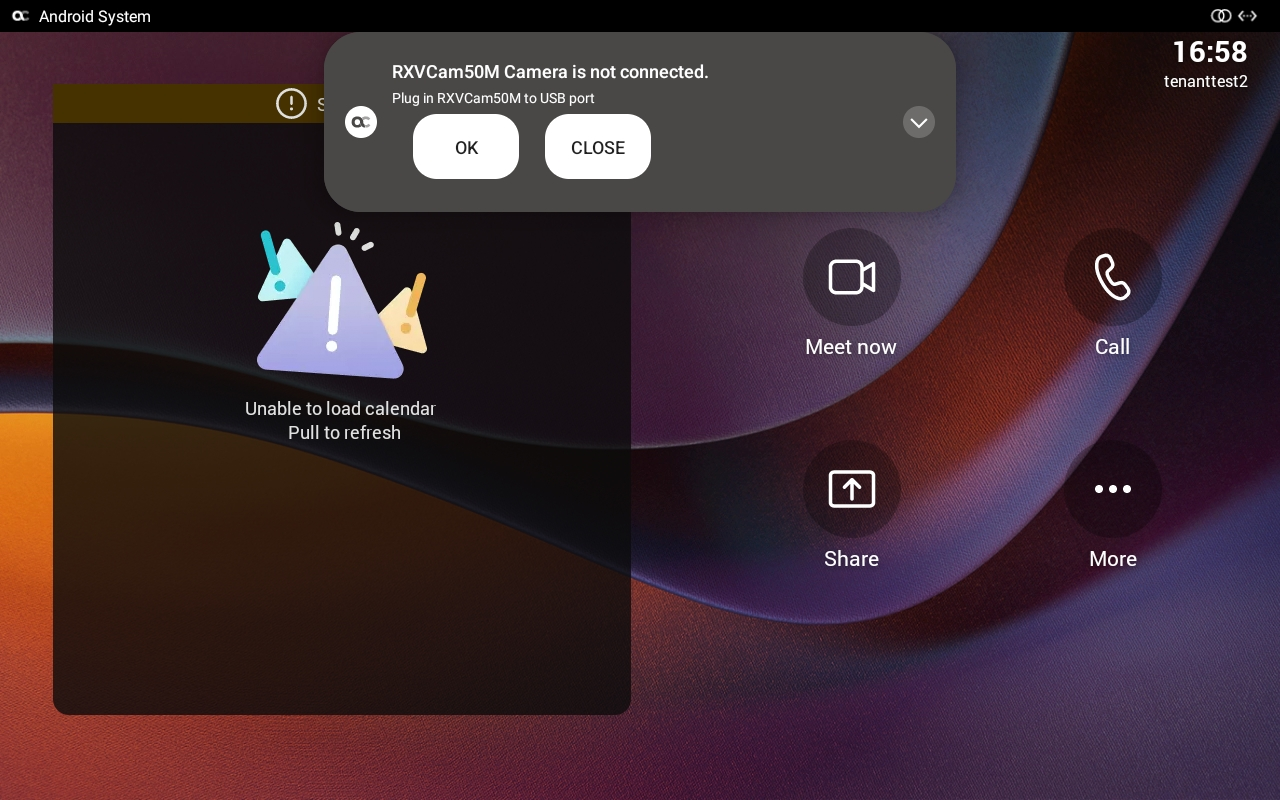
Select the jpg image file you require; the screen capture opens in an image editor. |
|
➢
|
To alternatively capture a screen: |
|
1.
|
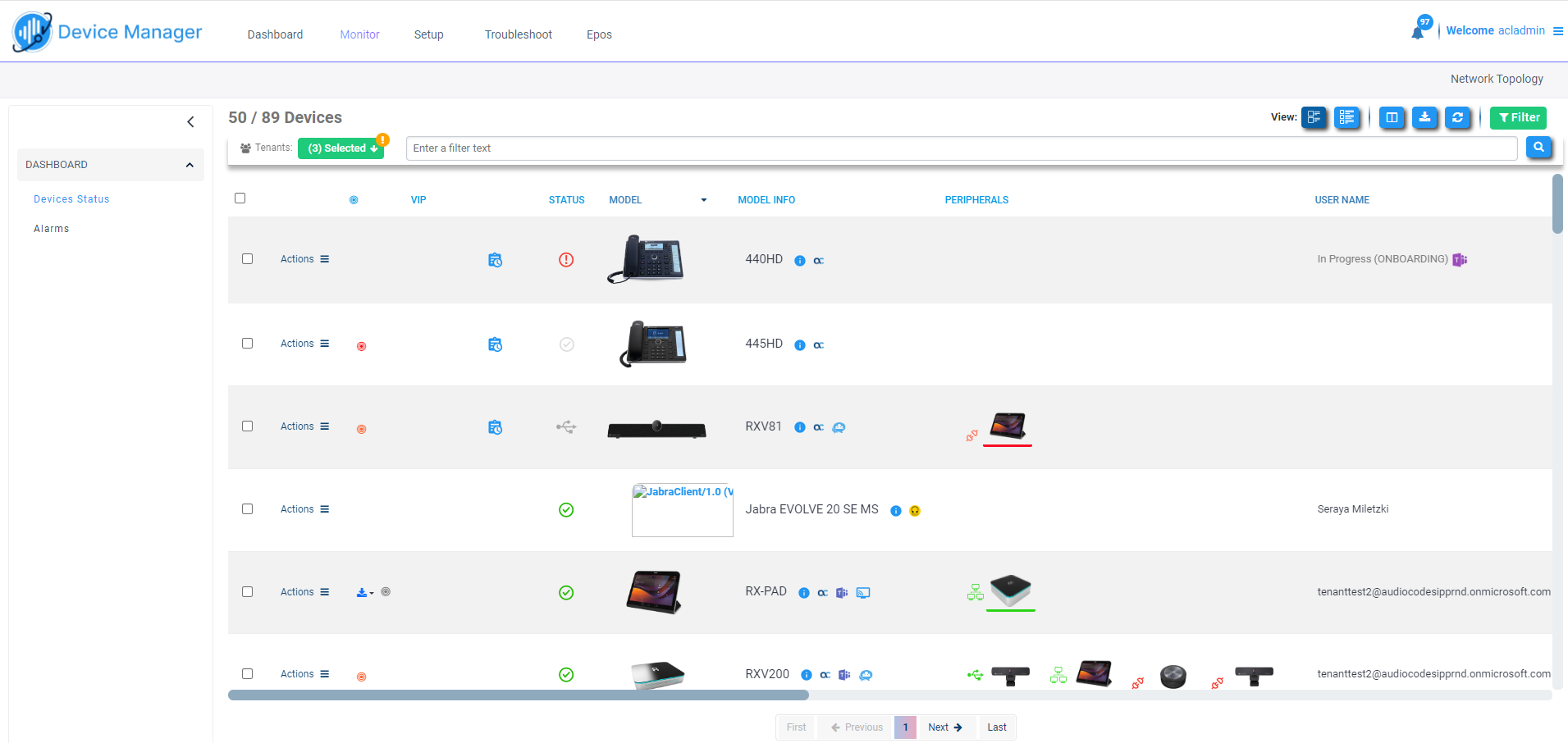
In Device Manager, open the Devices Status page (Monitor > Devices Status). |
|
2.
|
Select a Tenant from the Tenants drop-down and then click  . . |
|
3.
|
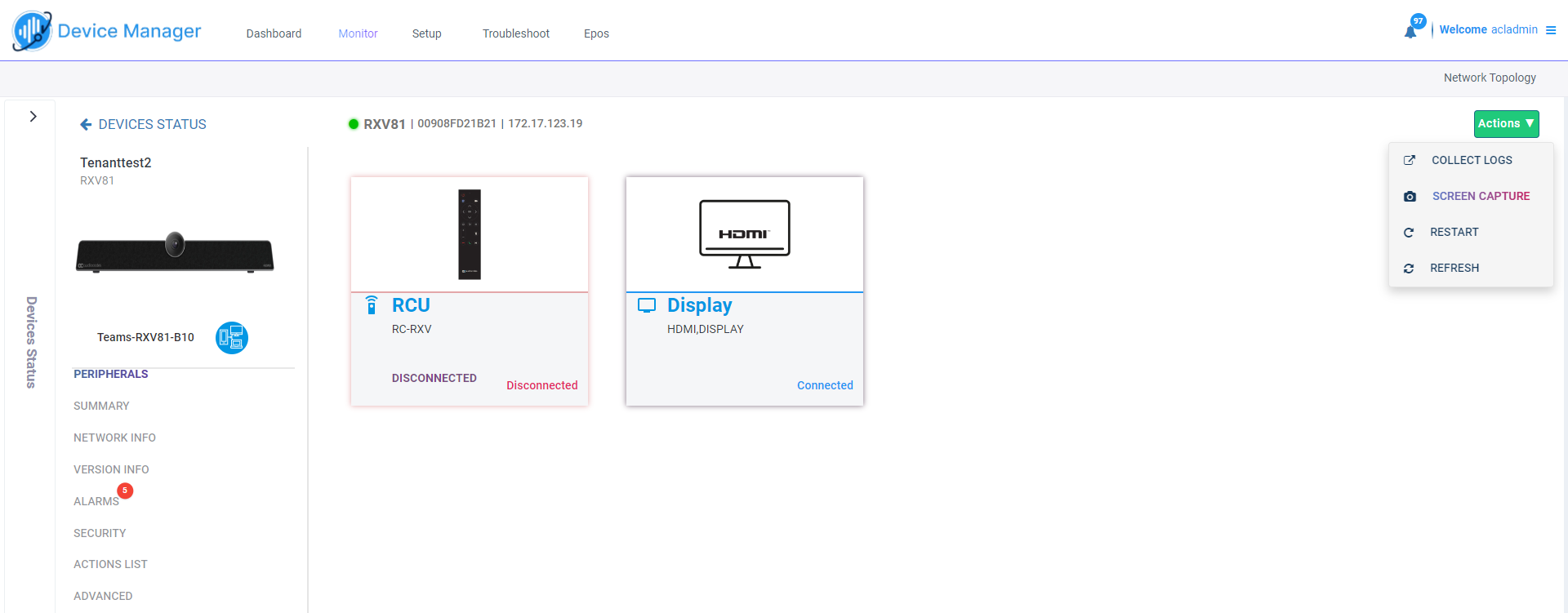
Click the image of the device whose screen you want to capture (or click Actions in the same row as the device and then select Show Info from the menu that pops up). |
|
4.
|
From the Actions drop-down, select Screen Capture. |
|
5.
|
View in the Devices Status page the download icon displayed in the same row as the device whose screen you captured. |

|
6.
|
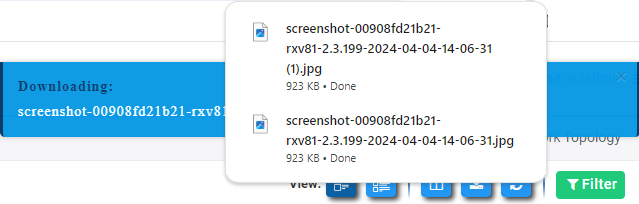
Click the icon or the tooltip; a downloaded indication appears in the upper right corner of the page. |
|
7.
|
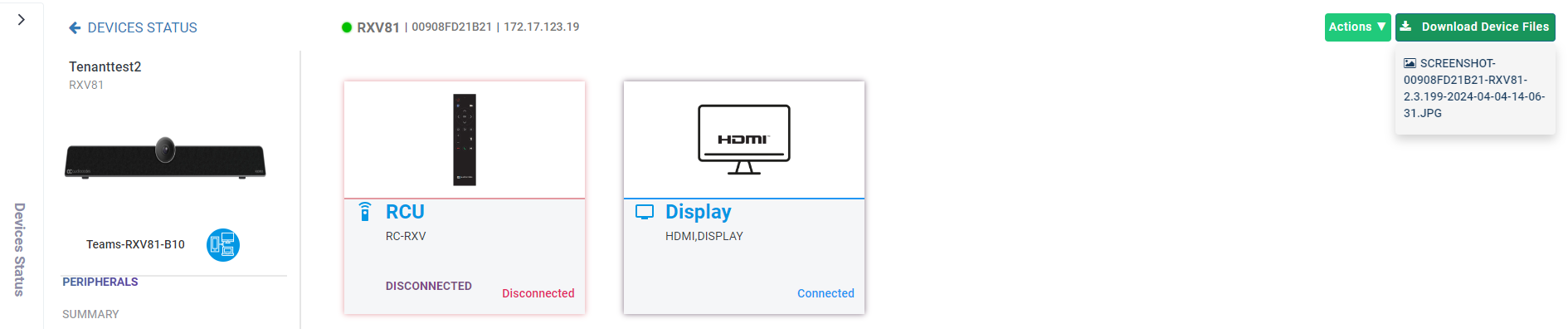
Click the image of the device whose screen you captured or click Actions and select Show Info. |
|
8.
|
View the Download Device Files button now displayed in the uppermost right corner. Click it and download the file. |
|
9.
|
Send the file as an attachment to your FAE to more effectively debug | troubleshoot the issue. |